Each organization in the global community of Crossref members (that’s currently over 24k organizations in 166 different countries) plays a key role in building the Research Nexus. Any opportunity we have to meet with our members in person is a highlight and a way for us to learn more from each other. The month of January saw three of us travel to Bangkok to attend the first-ever Charleston Conference organised in Asia and to meet with our growing community in Thailand.
This year, we placed a spotlight on the Latin American community, hosting the second Crossref Metadata Sprint in São Paulo, Brazil from 4 - 6 March 2026. In our first tri-lingual event, we brought together 31 participants from Argentina, Brazil, Colombia, Ecuador, and Mexico. Our goal was to foster community co-creation using the open scholarly metadata. The Sprint was an opportunity to pose questions, share ideas, collaborate on research, and propose innovative solutions that enhance the use of metadata in scholarly communication and beyond.
Read on for more details about the content of the Sprint, and the resulting projects. You can also register to join our Sprint Showcase call on 22nd April to hear directly from the team about their creations.
On 17 March 2026, we experienced an outage that affected DOI resolution for Crossref DOIs and the deposit of metadata records by Crossref members. In this summary, we outline what happened, the impact on our community, and the steps we are taking to strengthen our systems and processes as a result.
We’re excited to announce a new data citation API endpoint and are seeking your feedback. The new service makes existing data citation relationships in our metadata available, thereby surfacing this part of the research nexus. At the same time, we’ve decided that it’s time to move on from Event Data.
To work out which version you’re on, take a look at the website address that you use to access iThenticate. If you go to ithenticate.com then you are using v1. If you use a bespoke URL, https://crossref-[your member ID].turnitin.com/ then you are using iThenticate 2.0.
To download a Similarity Report as a print-friendly .pdf document, click the print icon at the bottom left of the Document Viewer.
The .pdf created is based on the current view of the Similarity Report, so a version created while in Match Overview will create a .pdf with color-coded highlights.
Filters and exclusions in individual Similarity Reports (v1)
You can use filters and exclusions to remove certain elements from being checked for similarity, and help you focus on more significant matches. The functions for excluding material are approximate - they are not perfectly accurate. Take care when choosing what to exclude, as you may miss important matches. At folder level, all users can set filters and exclusions, and administrators can also set URL filters and phrase exclusions. These settings will apply to any documents within the folder. But you can also set filters and exclusions on an individual document, so they only apply to the Similarity Report for that specific document.
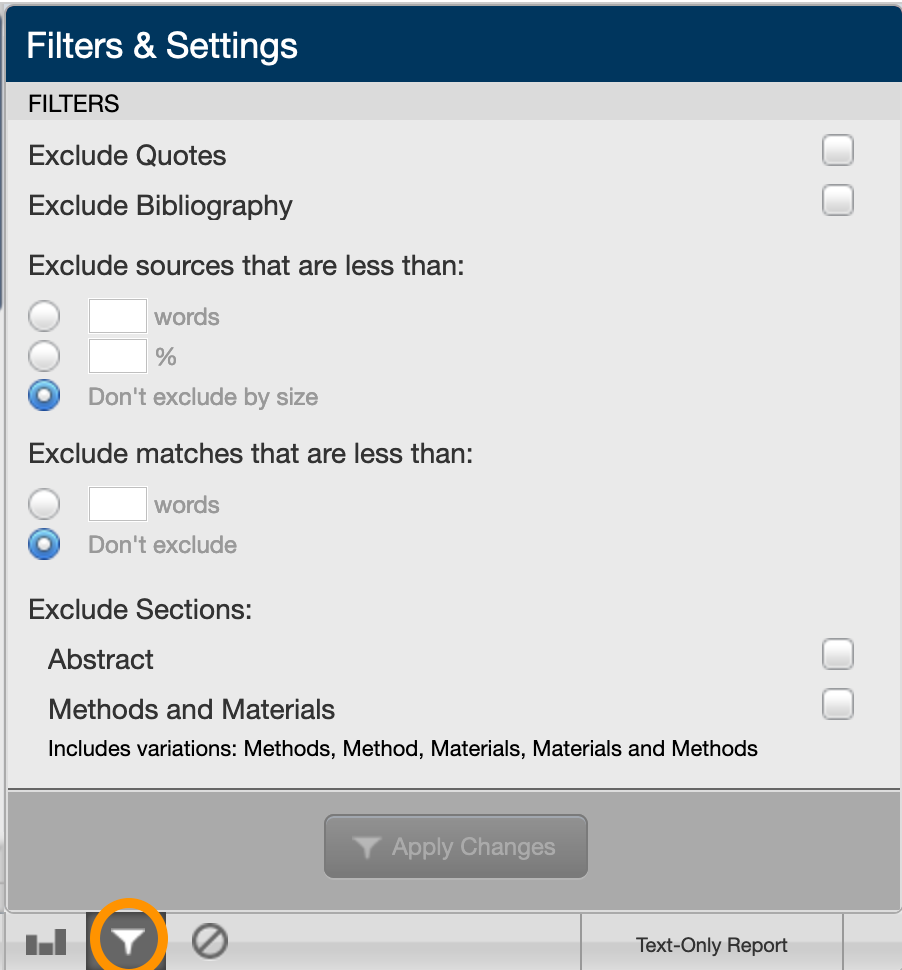
Start from the Document Viewer, and click the filters icon at the bottom of the sidebar to see the Filters & Settings menu.
The filters and exclusions options are:
Exclude quoted or bibliographic material: Click the check-box next to Exclude Quotes or Exclude Bibliography, then click Apply Changes at the bottom of the Filter & Settings sidebar.
Exclude small sources: Click the check-box for excluding by words or %, and enter a numerical value for sources to be excluded from this Similarity Report. To turn off excluding small sources, select Don’t exclude by size. Click Apply Changes at the bottom of the Filter & Settings sidebar. This setting will affect the All Sources view of the side panel.
Exclude small matches: Under Exclude matches that are less than, choose words, and enter the numerical value for match instances to be excluded from this Similarity Report. To turn off excluding small matches, select Don’t exclude. Click Apply Changes at the bottom of the Filter & Settings sidebar. This setting will affect the Match Overview view of the side panel.
Exclude sections: Under Exclude Sections, choose the sections you would like to exclude:
abstract
methods and materials (including variations)
iThenticate will exclude sections of the submitted document with headers containing the excluded words: ‘abstract’, ‘method and materials’, ‘methods’, ‘method’, ‘materials’, and ‘materials and methods’.
Exclude a match (v1)
If you decide that a match does not need to be flagged, you can exclude the source from the Similarity Report through Match Breakdown or All Sources. The Similarity Score will be recalculated, and may change the current percentage of the Similarity Report.
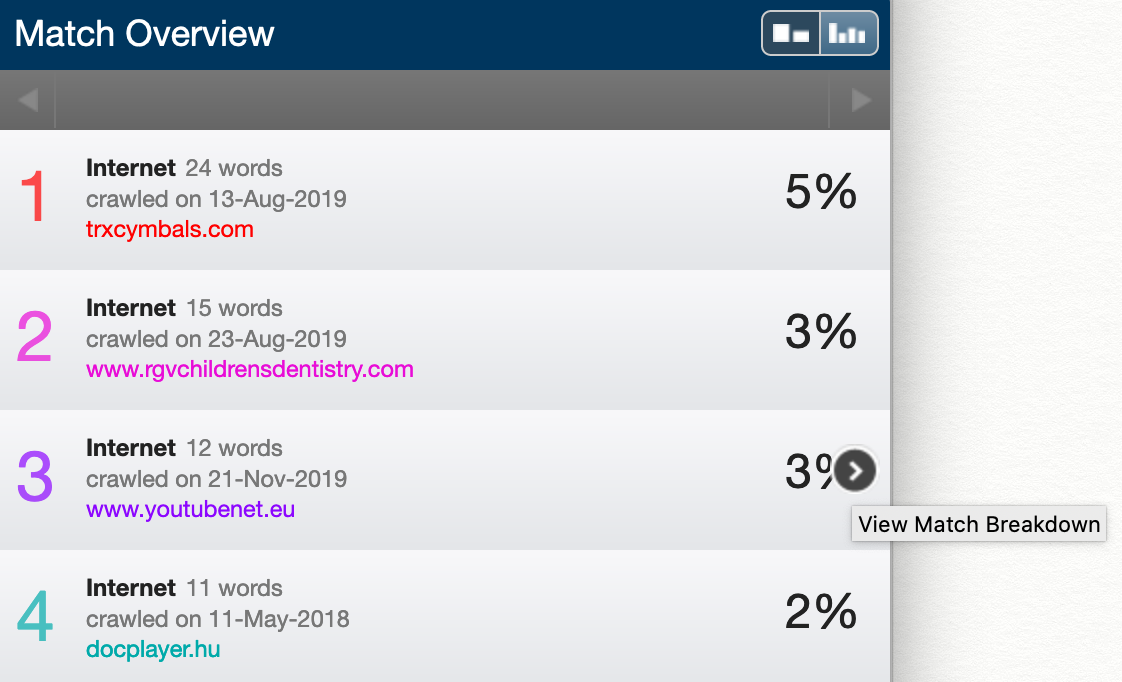
To access Match Breakdown from Match Overview, hover over the match for which you would like to view the underlying sources, and click the arrow icon.
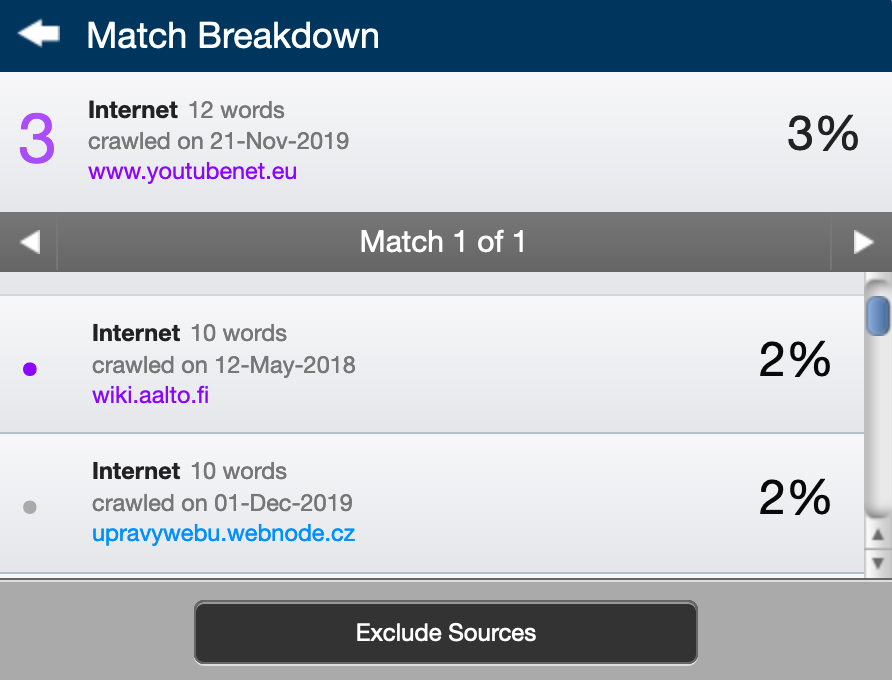
In Match Breakdown, click Exclude Sources, and select the sources you would like to remove by selecting the check-box next to each, then click the Exclude button.
To exclude an entire source match from All Sources, select Exclude Sources, select the sources you would like to remove by selecting the check-box next to each, then click the Exclude button.
Excluded sources lis (v1)
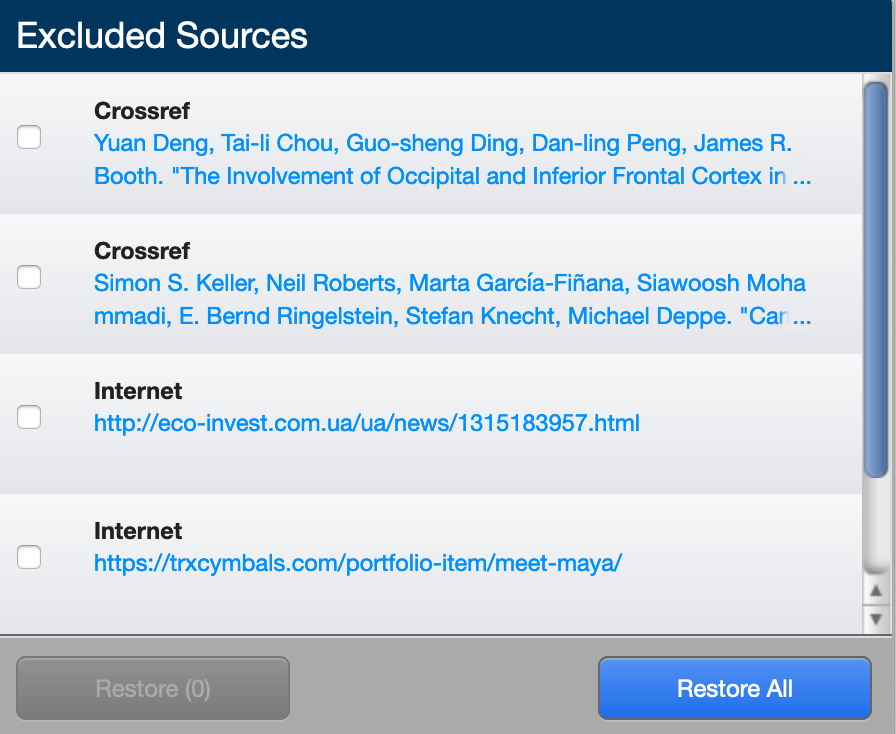
The excluded sources list shows all sources excluded from the Similarity Report. To see the excluded sources list, click the excluded sources icon at the bottom of the sidebar.
Click the check-box next to any source you would like to re-include in the Similarity Report, and click the Restore button to include the source in the Similarity Report. To restore all of the sources that were excluded from the report, click the Restore All button. The Similarity Score will be recalculated.
The text-only report (v1)
Start in the Document Viewer, and click the Text-Only Report button at the bottom right to see the Similarity Report without document formatting. The report will stay in text-only view mode (even if you close and reopen it) until you click Document Viewer to return to that mode.
Along the top of the screen, the document information bar shows important details about the submitted document (including the date the report was processed, word count, the folder the document was submitted from, the number of matching documents found in the selected databases and the similarity index), and a menu bar with various options. Use the information bar drop-down to switch between uploaded documents in the same folder.
The menu bar beneath the information bar has a mode selection drop-down menu, options to exclude quotes, bibliography, small sources, and small matches, as well as options to print and download.
Choose a viewing mode from the mode drop-down menu:
Similarity Report (default) - this mode has a similar layout to the Document Viewer. You will see the document’s text on the left of the screen, with similarities highlighted. On the right are the sources, color-coded and listed from highest to lowest percentage of matching words. Only the top or best matches are shown - choose Content Tracking mode to see all underlying matches.
Content tracking mode lists all the matches between the submitted document and the databases. Regular updates means that there may be many matches from the same source, some of which may be partially or completely hidden due to the content appearing in a higher matched source. The sources that are the same will specify from where they were taken and when.
Summary report mode offers a simple, printable list of the matches found followed by the paper with the matching areas highlighted. It shows the sources first, with the document text below.
Largest matches mode shows the percentage of words that are a part of a matching text string (with some limited flexibility). In some cases, strings from the same source may overlap, in which case, the longer string in the largest match view will be displayed.
You have options to filter and exclude:
Exclude quoted or bibliographic material - click Exclude Quotes or Exclude Bibliography from the menu bar.
Exclude phrases - click enable this setting for a folder means that any submission made to that folder will exclude the phrases specified in the folder settings. If you would like to include these phrases in the report, click Do not Exclude Phrases in the menu bar.
Exclude a match - use this to exclude a source from the Similarity Report in either the Similarity Report or largest matches viewing modes. To exclude a match, view the report in Similarity Report or largest matches mode. Each source listed has an X icon to its right - click this to exclude the source. Any underlying source, if present, will replace the excluded source. Once a source has been excluded it can be re-included in the Similarity Report through the content tracking mode, which lists all sources with content matching that of the submission. In this view mode, excluded sources have a + icon to the right of their name - click this to re-include the source in the Similarity Report.
Exclude small sources and matches - click Exclude small sources or Exclude small matches in the menu bar.
Exclude small sources - To exclude a small source, enter a value into the word count or percentage field to set an exclusion threshold. Any source below the word court or match percentage threshold will be excluded from the record. Click Update to save the exclusion setting.
Exclude small matches - To exclude a small match, enter a value into the word count field to set an exclusion threshold. Any match below that threshold will be excluded from the report. Click Update to save the exclusion setting.
Making these changes may change the percentage of matching text found within the submission. Deselect an option to include it again.